This guide is intended for downloading installation files on a computer that already has an older version of SOLIDWORKS installed. The installation package size is very large (approximately 15 GB), so be sure to allow plenty of time for the download, especially with slower internet connections.
1. If SOLIDWORKS is not running, start it and select “Check for Updates” from the Help menu.
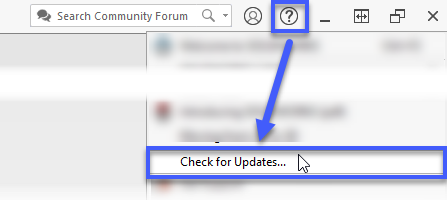
2. The Installation Manager will begin searching for updates. Available updates will be listed in a dropdown menu. Select the desired version to download from the dropdown and proceed by clicking "Next".
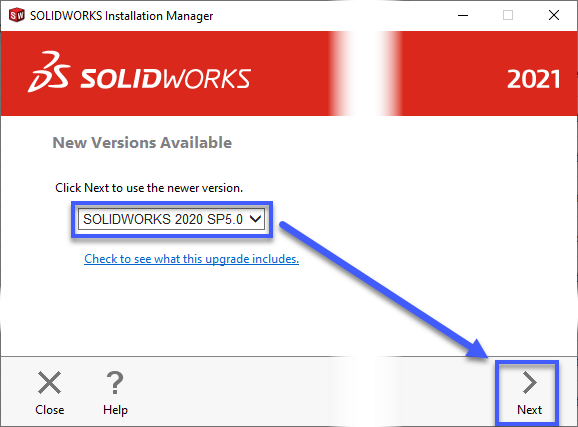
3. SOLIDWORKS will start downloading the Installation Manager for the selected version. When the Installation Manager launches, choose the option “Download and share all files...”.

4. If necessary, change the download folder for the installation package by clicking the “Change” button (default is "Documents" > "SOLIDWORKS Downloads") or adjust other settings shown in the image. Start the package download by selecting “Download Now”.
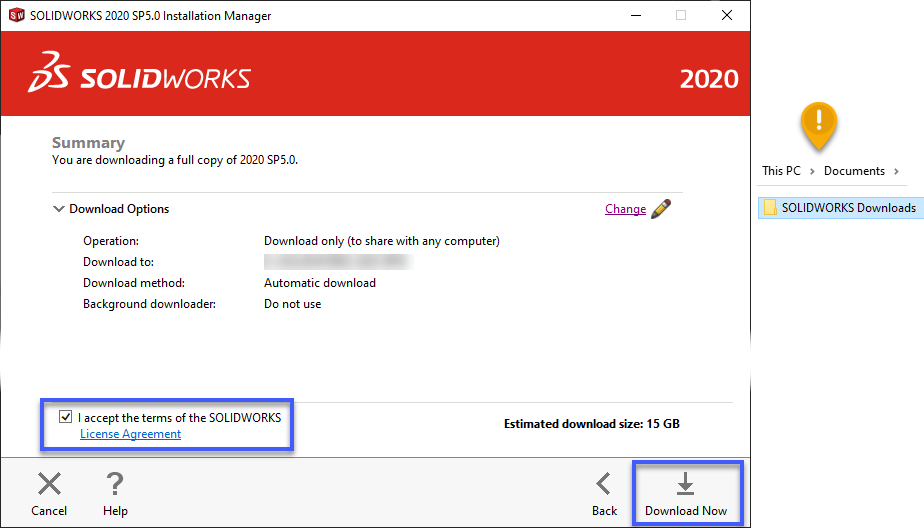
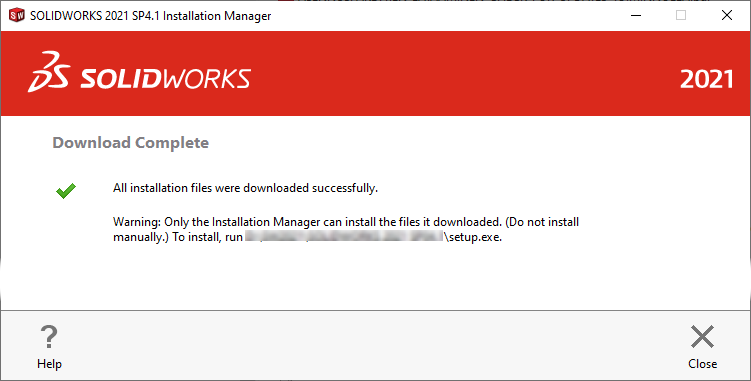
The Installation Manager will notify you when the installation package has been fully downloaded to the folder.
TIP: If SOLIDWORKS needs to be installed or updated on multiple workstations, copy the downloaded installation package folder to an external hard drive, server, or another shared location from which the SOLIDWORKS installation/update can be launched on those other workstations. This way, you do not need to download the installation package separately on each workstation.
Comments
Please sign in to leave a comment.